Create Your First Book
By the end of this section you will have a new Project Workspace, and you will know how to get the Agent working inside it.
Create the Project
When you create a new project in the app, give it a clear title and a one-line synopsis. The title does not have to be perfect — you can change it any time. The synopsis works best when it says what the genre is, who the protagonist is, and what the hook is.
A workable starting point:
Title: The Starlamp Express
Synopsis: A ticket inspector who has lost his memory searches for his real identity aboard a night train that runs between cities made of dreams.
Once created, NeuroBook generates a Project Workspace. The default template sets up the base directories, including lorebook/, manuscript/ and world-engine/.
The Click Path
The first time you create a project, do it in this order:
- Open NeuroBook (visit
http://localhost:3000in your browser). - Click Bookshelf on the left of the top bar, then create a new project on the bookshelf page.
- Fill in the title and synopsis.
- After creation you land in this book's workspace.
- Check that the file tree on the left shows
project.yaml,lorebook/,manuscript/andworld-engine/. - Click the button at the far right of the top bar to open the Agent panel (the right-hand drawer).
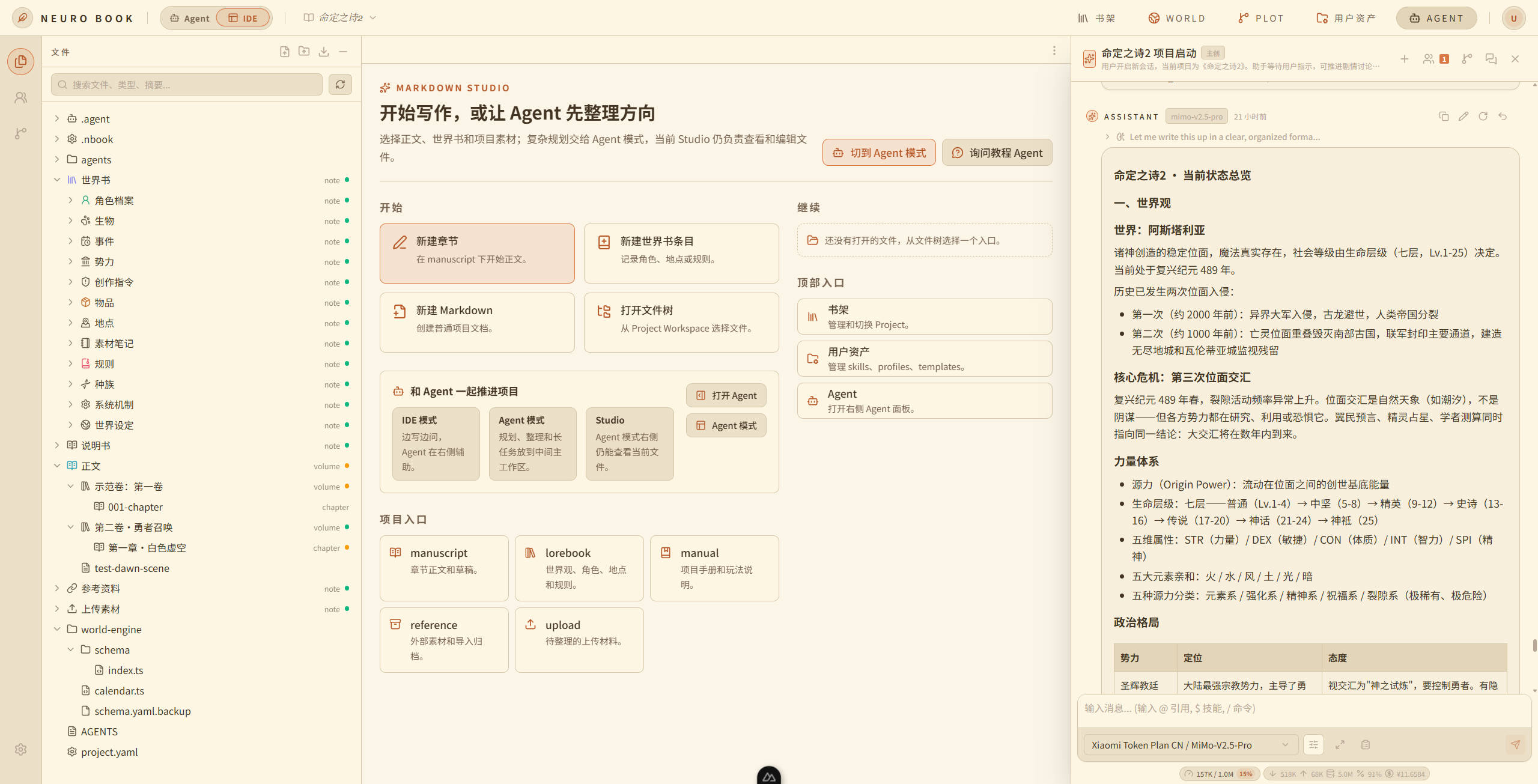
From left to right the top bar is: Bookshelf, World (World Engine), Plot (the Plot Workbench), Trace (request tracing), Jobs (background jobs), Changes (file history) and User Assets, with the Agent panel toggle and the account menu at the far right. Some buttons collapse when the window is narrow.
Understand the Working Boundary First
The Project Workspace is this book's boundary. When the Agent reads and writes project files, it should prefer paths inside the project, such as:
lorebook/character/protagonist/index.md
manuscript/001-volume/001-chapter/index.md
world-engine/schema/index.ts
If you only remember one thing: stable settings go in lorebook/, finished prose goes in manuscript/, and anything that changes goes to the World Engine timeline.
Open Your First Agent
The default creative entry point is usually the general writing Leader. It works like an editor-in-chief or a producer: it works out what you are trying to do right now, then decides whether to call a Skill, look something up, create a writing Agent, or first advance the confirmed story facts into the World Engine timeline.
You can just say to it:
Run a novel setup pass for this new project. Ask me the questions you need first, then establish a minimal writable story concept, a worldbook skeleton, and a direction for the first three chapters.The Agent does not magically know everything about your project. It reads the current Project Workspace through tools, or follows a Skill's instructions to move the task forward.
How You Know It Worked
After this section you should see:
project.yaml
lorebook/
manuscript/
world-engine/
reference/
.nbook/
The Agent should be able to answer "what is the current project" and explain how it plans to initialize this book.
If the Agent says it cannot find the current project, have it check the Current Project Workspace first:
Check whether the current Project Workspace is set. If it is not, tell me how to switch to the project I just created.How Agent, profile, session and Skill Relate
The names sound like engineering jargon, but in practice you can read them like this:
- profile is the Agent's role. The general writing Leader coordinates (including advancing the World Engine and maintaining Plot); writer writes prose.
- session is the work record. One profile can have many sessions.
- Agent is the AI assistant actually doing the work.
- Skill is the procedure manual.
novel-setup, for example, tells the Agent how to get from a vague idea down to project files.
If you are not sure what to do next, just ask the Agent, or have it read the novel-guide roadmap Skill to work out which step you should be on.
Starting with the next section, you will have leader call Skills and turn an empty project into a novel project you can write in.